 Calendar Widgets Suite
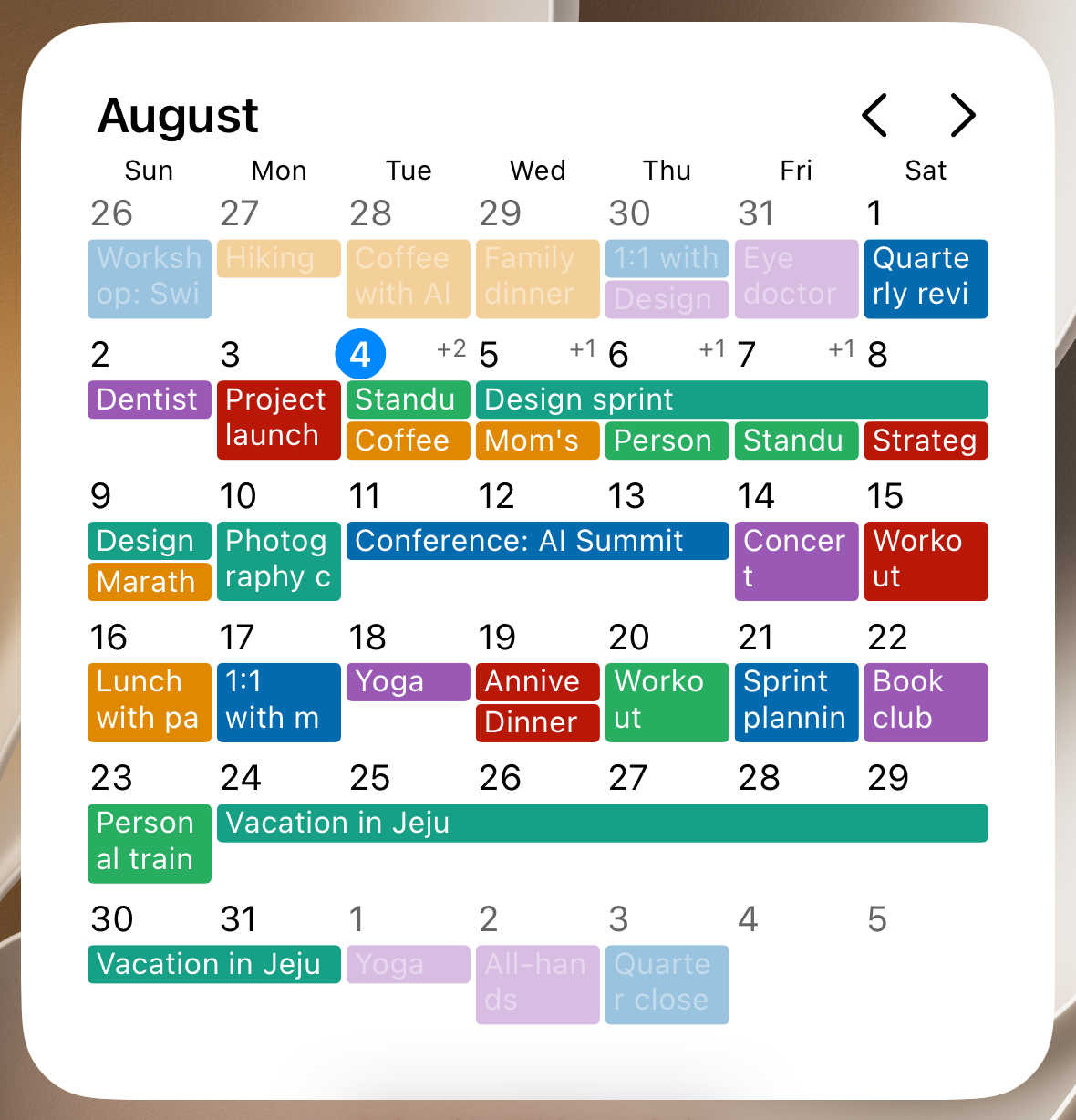
Month
The full month at a glance, with event titles right in the day cells.
Calendar Widgets Suite puts your calendar on the Home Screen — month, week, timeline, or list — styled to match the wallpaper behind it.

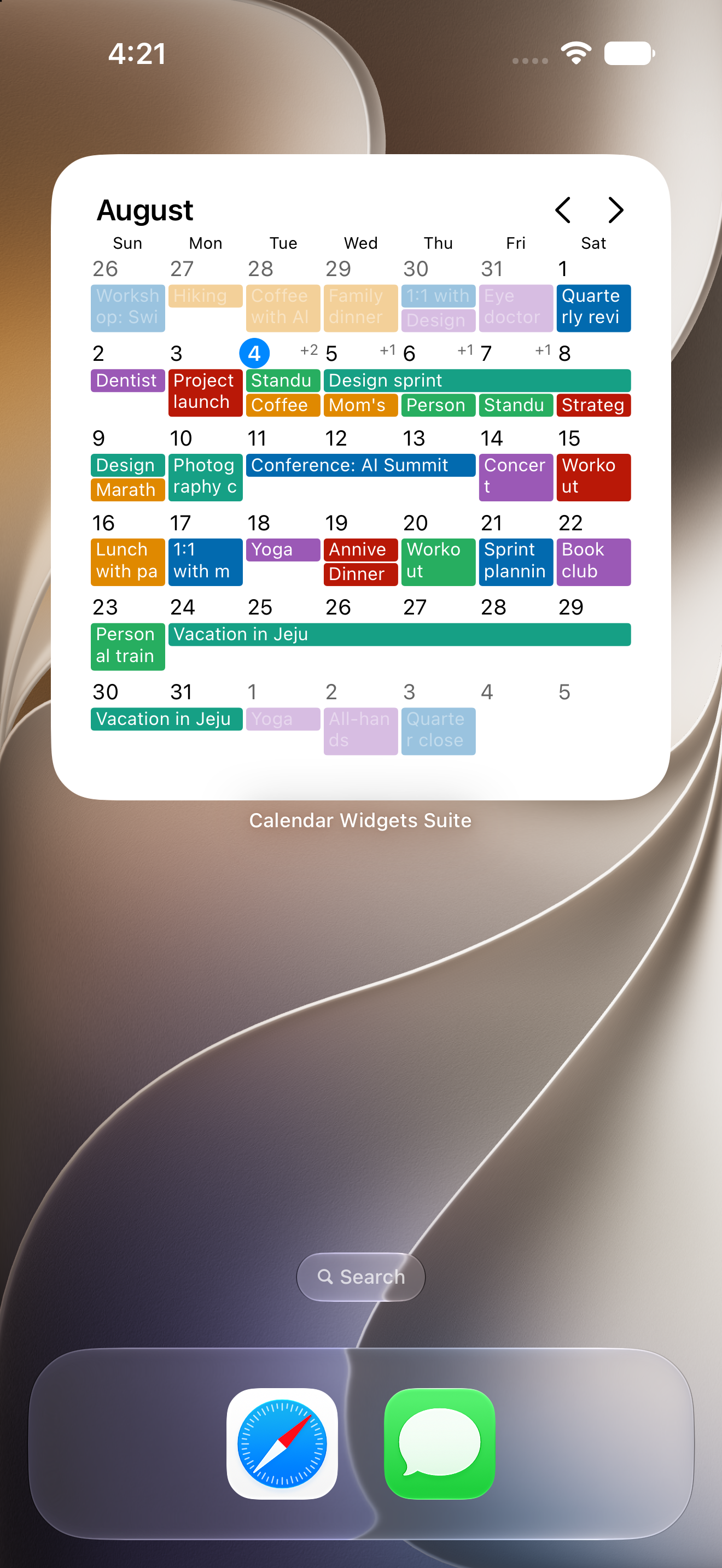
Unlock. Hunt for the app. Wait for it to load. Close it. And again an hour later — dozens of times a day, for a five-second glance. A calendar you have to open is a calendar you stop checking.
Pick the shape that matches how you actually plan. Add as many as you like, in any size.
The full month at a glance, with event titles right in the day cells.
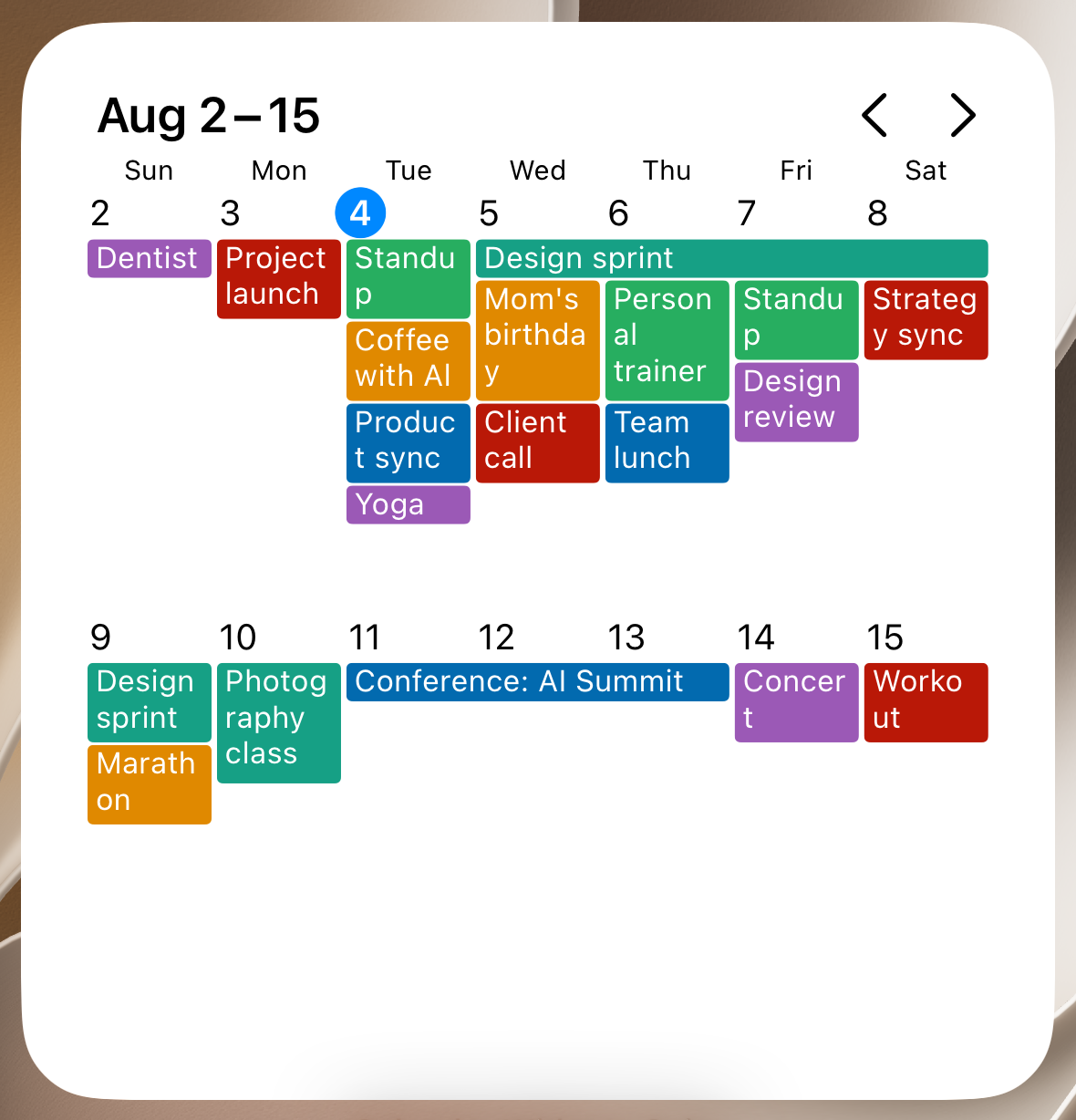
One, two, three, or four weeks — just the horizon you actually plan against.
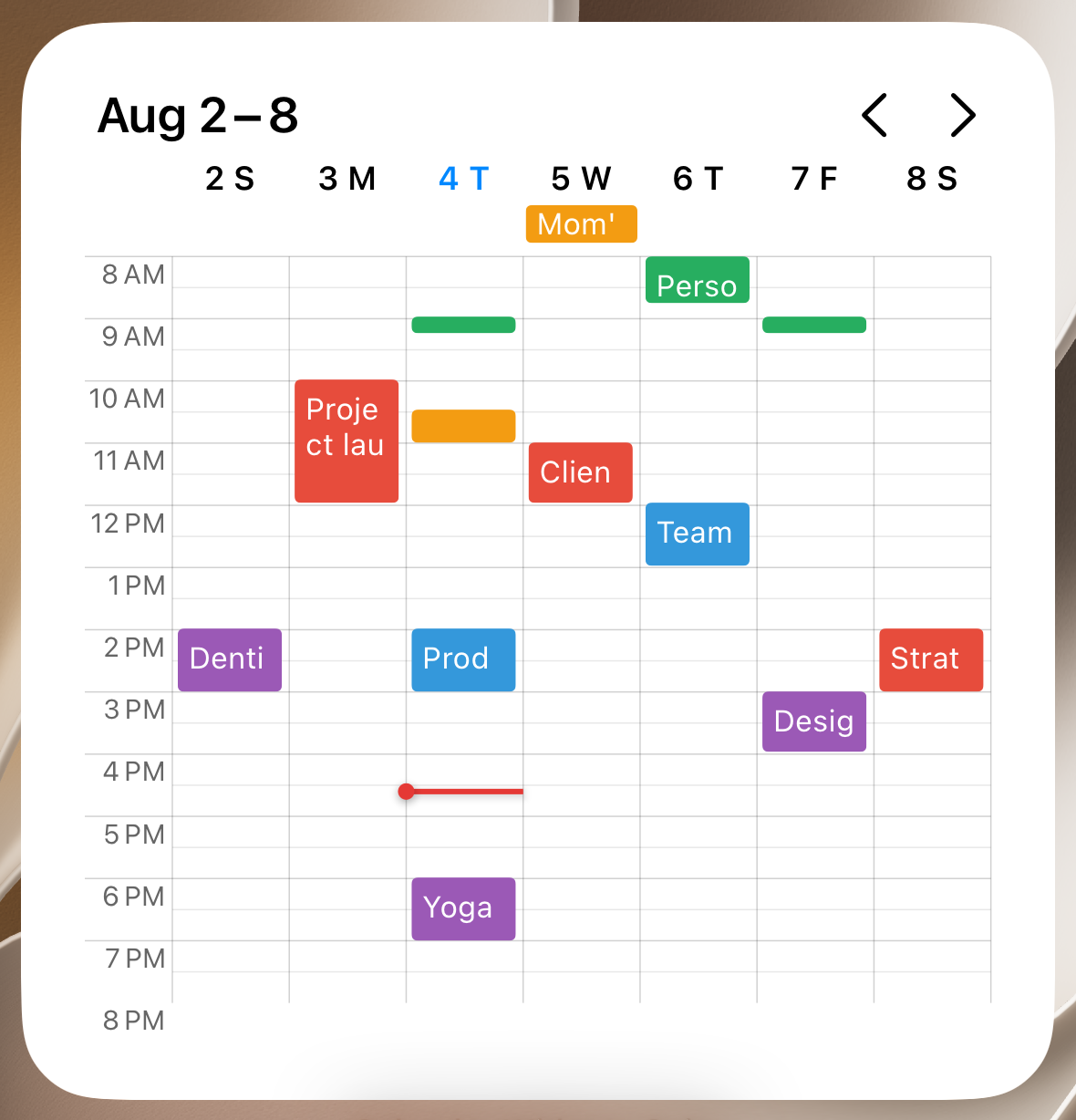
An hour-by-hour grid for one to seven days, so the gaps read as clearly as the meetings.
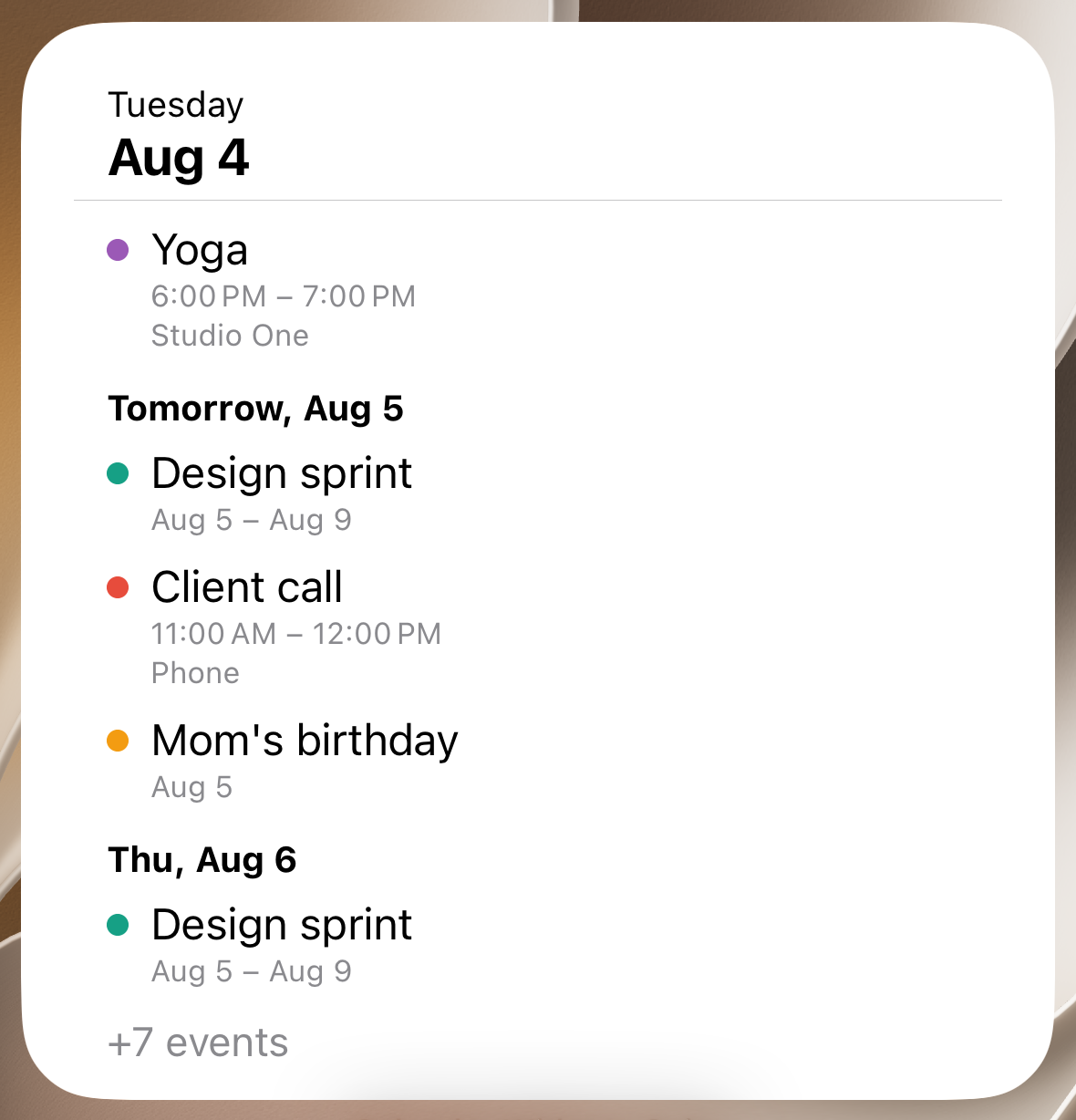
What’s coming up next, in order. Colored chips or simple dots — your call.
Stock widgets clash with your Home Screen. Pick a skin, tune the colors and fonts, and make it yours.
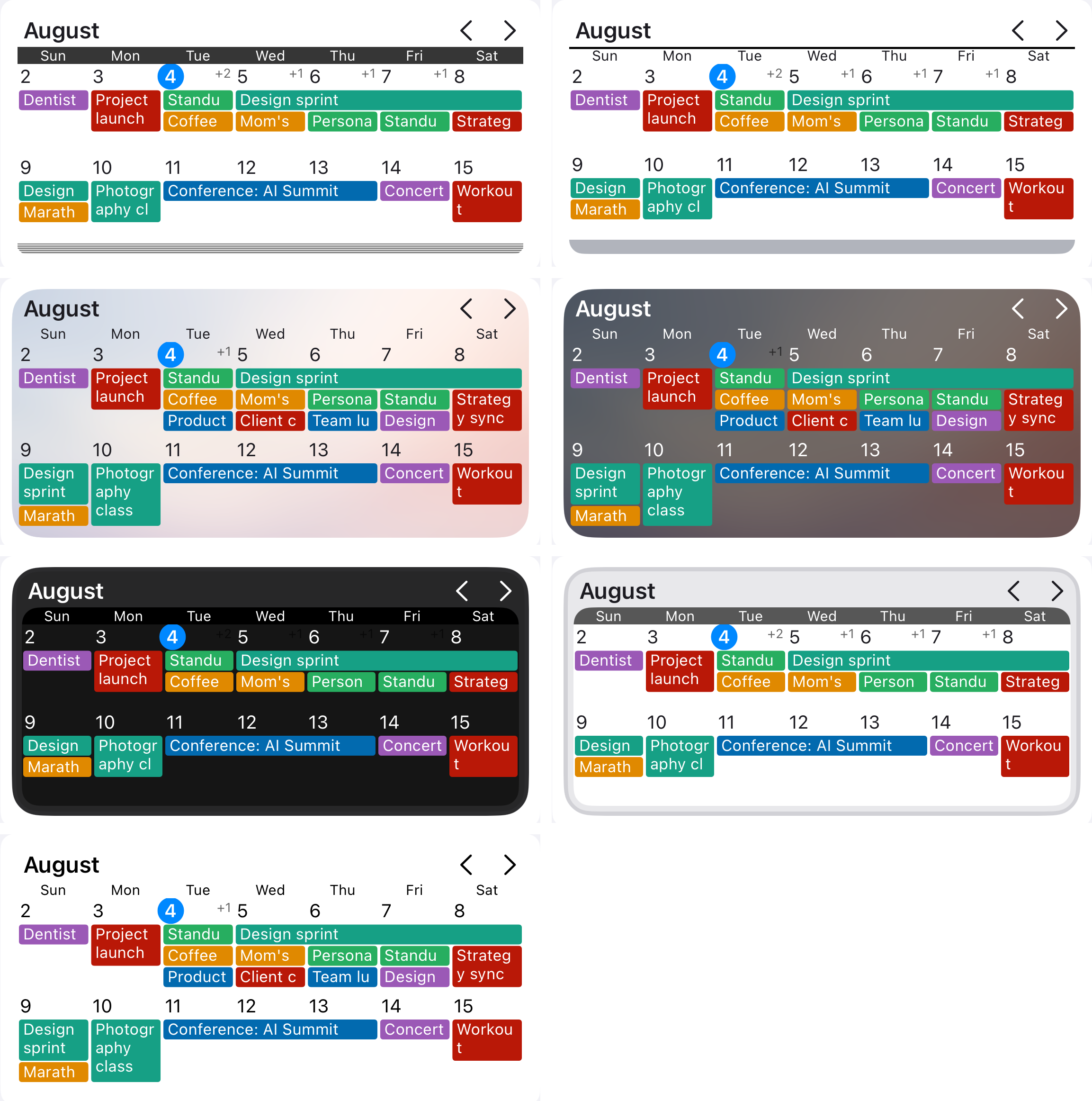
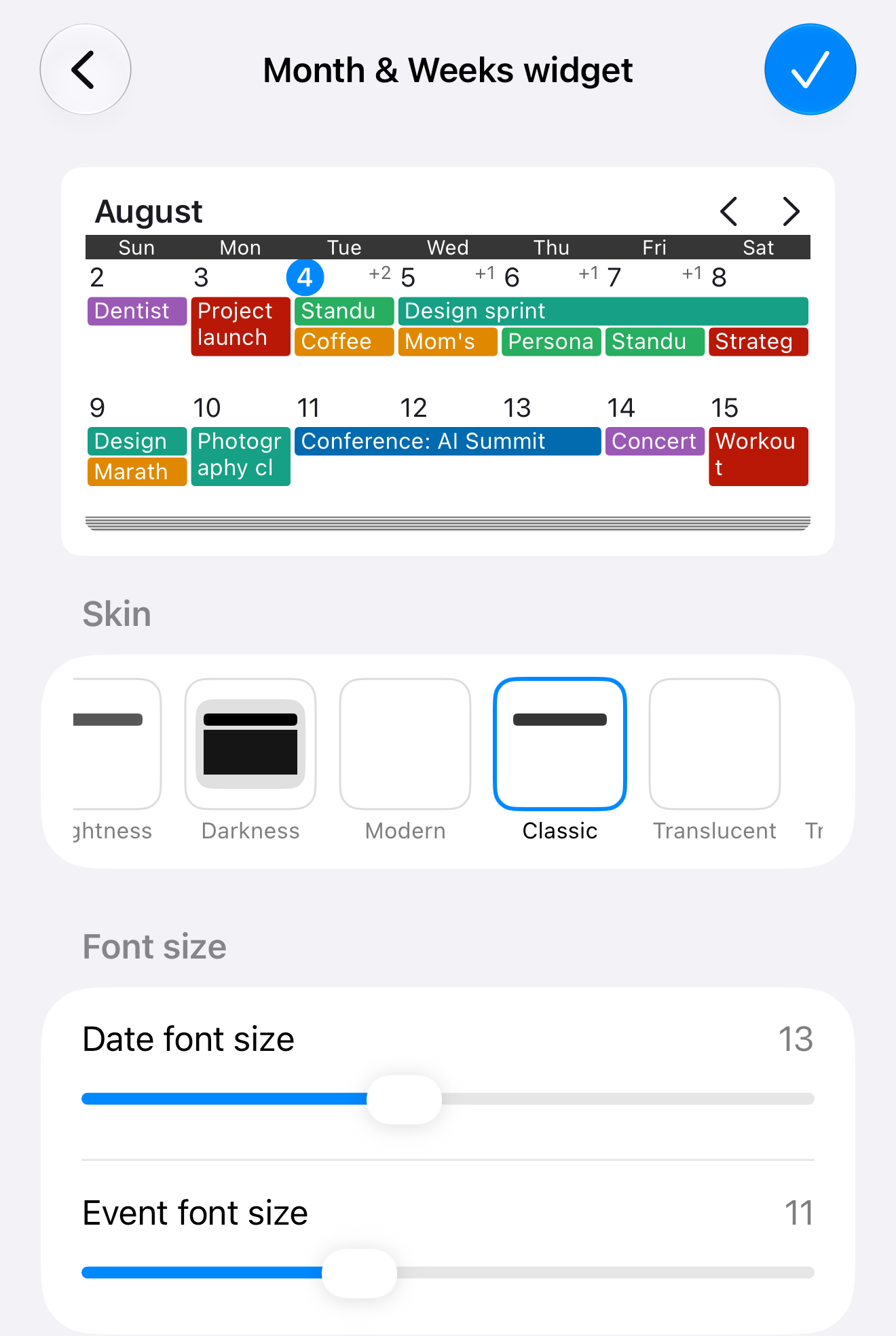
Calendar Widgets Suite reads your events on the device and draws them — nothing about your calendar ever leaves your phone. There is no account to create, no server to sync with, and no analytics or tracking of any kind. Your settings live in a private container shared only between the app and its own widgets.
Calendar Widgets Suite is fully translated into 27 languages.
Touch and hold an empty spot on your Home Screen until the icons jiggle, tap the plus button in the corner, search for Calendar Widgets Suite, then choose a widget and a size. You can restyle everything afterwards in the app.
Yes. Open Calendar Widgets Suite, tap Select Calendars, and pick the ones you want. If you select none, every calendar is shown.
iOS decides when Home Screen widgets redraw and budgets those refreshes, so a change can take a few minutes — occasionally longer — to appear. Saving a change in Calendar Widgets Suite asks every widget to redraw straight away.
An iPhone running iOS 27 or later.
Email admin@joshuanco.com and we will take a look. More troubleshooting lives on the support page.